
Hello, We are 3billion.
We are a team of dedicated individuals(AI engineers, bioinformaticians, designers, medical geneticisits, and salesforces) to innovate rare genetic disease diagnostics and furthermore the treament.
Welcome to GEBRA™, our diagnosis assist platform. GEBRA™ is cloud based software designed to analyze of genomic data and assist genetic professionals (clinicians, medical geneticists, variant scientists, bioinformaticians, etc) finding causal variant for rare disease patients' conditions. Figure below is a structure of GEBRA(figure 1).

It runs on AWS. The location of physical server may differ by user's location.Users can upload either FASTQ or VCF from their local computers to the server. Then it goes through our pipeline for variant calling and annotation. Once the data is analyzed, users can browse the analysis result and find out causal variants.
User MFA (Multi-Factor Authentication) Setup Guide
To ensure the highest level of security for sensitive Electronic Protected Health Information (ePHI) and to comply with HIPAA technical safeguards, our service mandates Multi-Factor Authentication (MFA). This robust access control ensures that only authorized users can access medical data.

Step 1: Prepare an Authenticator App
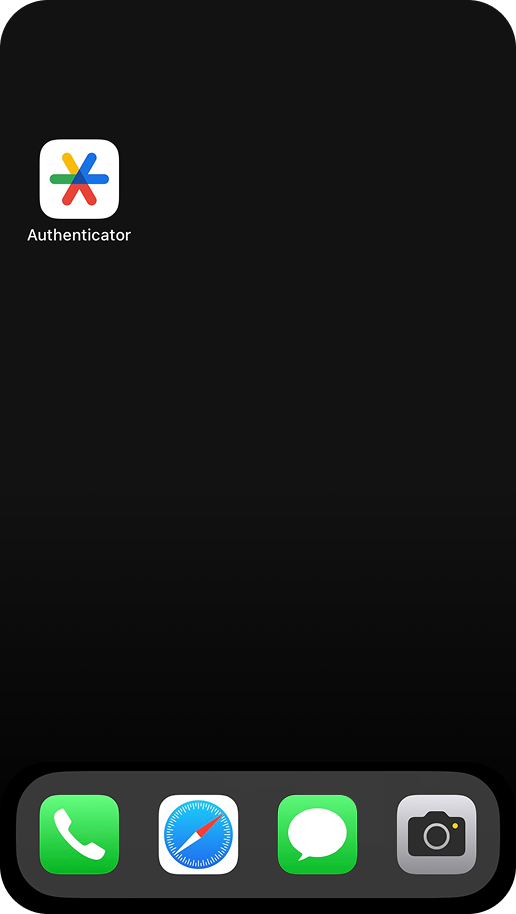
Install an authentication app on your mobile device. (Recommended: Google Authenticator, Microsoft Authenticator, Authy, or any app supporting TOTP like 1Password and Bitwarden.)
Step 2: Scan the QR Code
Scan the QR code displayed on the screen using your app’s 'Add Code' feature.
If you cannot use your camera, click "Can't scan the QR code?" to manually enter the provided Secret Key.

Step 3: Enter the 6-Digit Verification Code
Enter the 6-digit code generated by your app into the web screen to complete the registration.

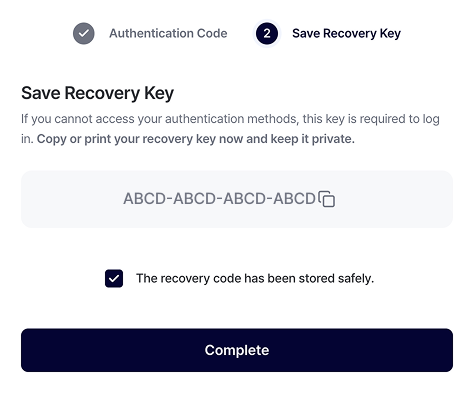
Step 4: Save Your Recovery Codes
After registration, a 16-digit one-time recovery key will be displayed. Store this in a secure location. This is your only way to access your account if you lose your mobile device.
Step 5: MFA protection is active.
For security, please log in again.
Step 1: Sign In with Your Credentials
Enter your registered Email and Password, then click the [Sign in] button.
Step 2: Enter the 6-Digit Verification Code
Open your designated Authenticator App on your mobile device.
Check the current 6-digit code generated for your account.
Type the code into the input fields on the "Verify your identity" screen.
Step 3: Remember This Device (Optional)
If you are using a trusted personal computer, check the "Remember this device" box. This will allow you to skip the MFA step on this specific browser for a set period.
Step 4: MFA protection is active.
For security, please log in again.
Considerations for Unrecognized Device Access
Please note the following when logging in from a new device or environment:
- MFA Requirement: Access from a new device, browser, or unrecognized IP will always require a 6-digit MFA code.
- Trust This Device: On your personal, secure device, check "Remember this device" during login. Once set, you can log in with just your email and password for the next 90 days on that specific device.
You can manage your registered MFA settings at any time in the account settings page.
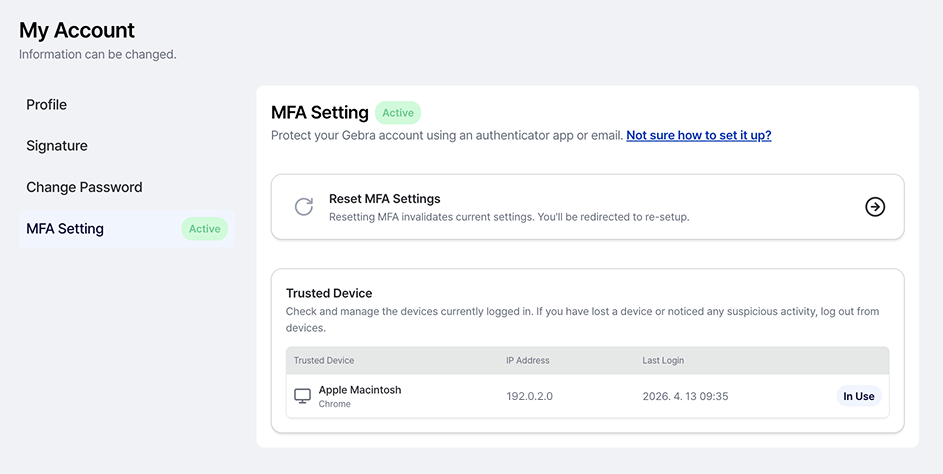
Path: Go to the [MFA Settings] tab within the My Account page.
Available Features:
- MFA Status: Check if multi-factor authentication is currently active.
- Reset MFA Settings: Resetting MFA invalidates current settings. You'll be redirected to re-setup.
- Trusted Device Management: View and manage the list of devices where MFA has been skipped.
If You Lose Access: If you cannot access your authenticator app, click "Can't access your authenticator app?" on the login screen and enter your saved Recovery Code.
Note: If you have lost your recovery code, you must contact the GEBRA team to undergo a manual MFA reset procedure.
To balance data security and collaboration efficiency in clinical genomic analysis, our service provides an access management system. Administrators can use Access Groups to set data boundaries, or use the Temporary Access feature for short-term scenarios (e.g., sample cross-referencing or external expert consultations).
Administrators can restrict user access to specific resources using either permanent custom groups or immediate, short-term temporary permissions.
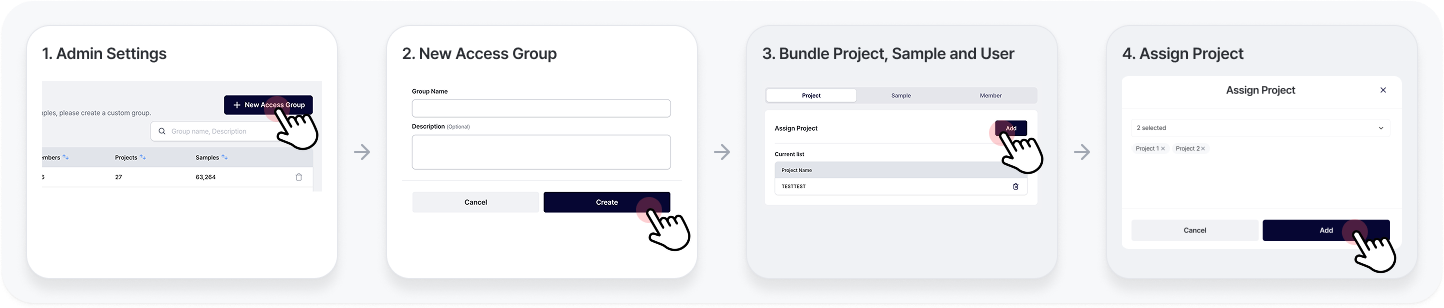
Step 1: Navigate to Admin Settings
Log in with an administrator account and go to the Settings page. Click on the dedicated [Access Group] tab.
- Full Access: Access to the institution's entire dataset (Default Group).
- Access Group: Access strictly limited to designated data/samples.
Step 2: Create a New Access Group
Click the [New Access Group] button. Enter a clear, identifiable name and description for the group (e.g., 'External Expert Consultation').
Step 3: Bundle Projects,Samples and Member
Select and add the specific Projects,Samples and Member you wish to bind together from the available list.
Step 4: Apply Permissions
The access boundaries are immediately applied, and the designated users will now only have access to the resources within that specific group.
For quick external reviews without the need to build a permanent group structure, admins can grant a system-enforced 7-day permission.
- From the [Temporary Access] tab, utilize dedicated picker modals (User Pool, Sample Pool) to instantly locate and pair the target user and sample.
- Monitor all temporary permissions via a real-time audit ledger tracking the Holder, Grant Time, Sample, and Expiration Date. Clicking [Revoke] instantly terminates access while permanently preserving the record for auditing purposes.
Administrators can strictly control user permissions right from the initial invitation stage to structurally prevent accidental internal data exposure.
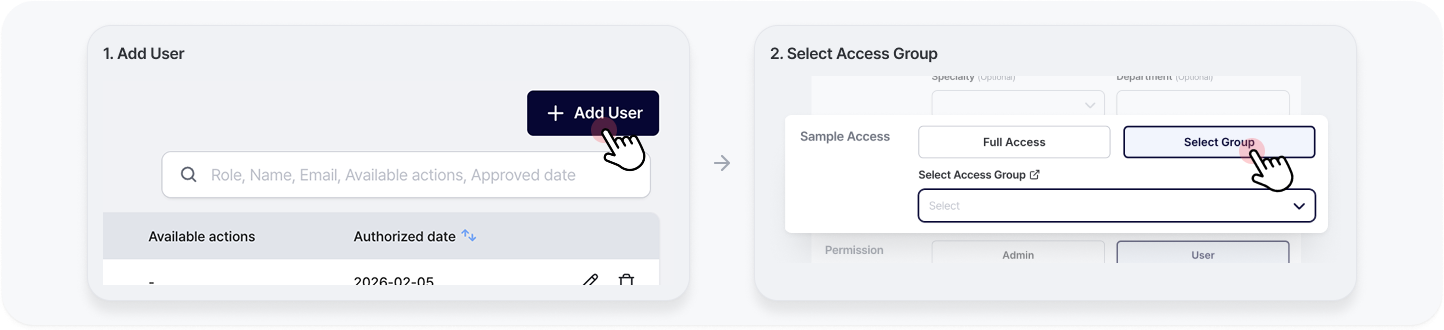
Path: Go to Settings > [User] >[Add User]
Choose Between Two Permission Tracks:
If you encounter a resource that you do not have permission to view while exploring the Knowledge Base, GEBRA ensures your collaborative workflow is not disrupted through an in-system request process.
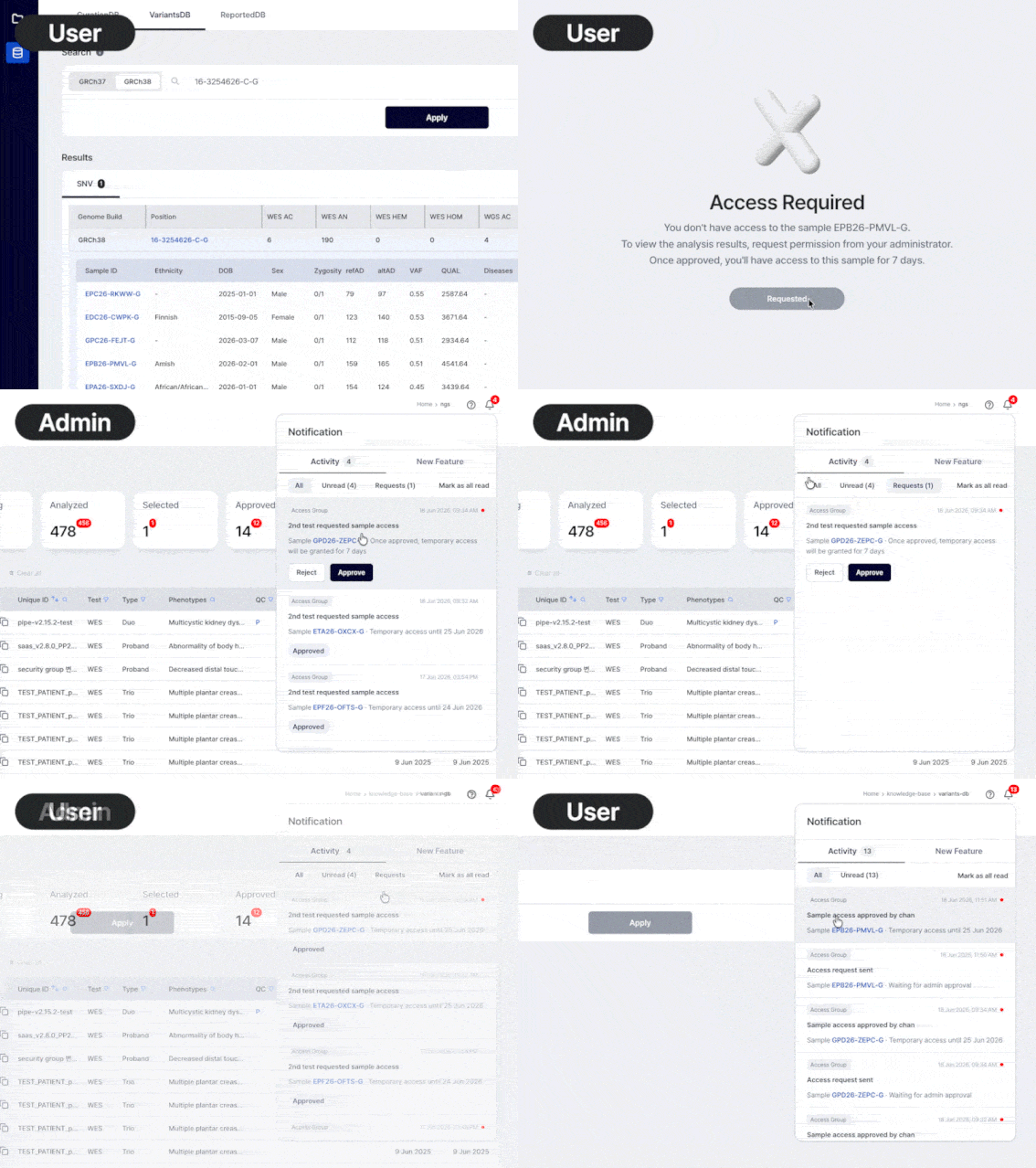
Step 1: Encountering the 'Access Required' Screen
When clicking on a restricted sample, instead of a broken error screen, a dedicated "Access Required" page will appear, stating:
"You don’t have access to the sample {Sample ID}. To view the analysis results, please request permission from your administrator."
Step 2: Click 'Request Access'
Click the [Request Access] button at the bottom of the screen.
Step 3: Automated Workflow & Instant Action
Billing Guide
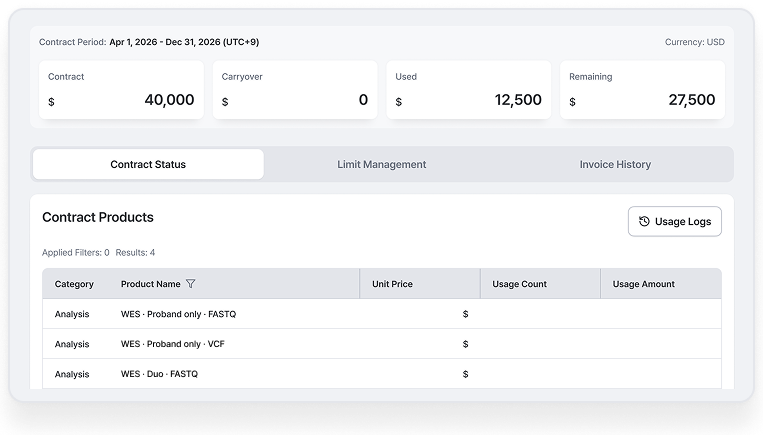
GEBRA's Billing page lets institutions manage contracts, usage limits, and invoices directly, without needing to contact 3billion for every check-in.
Review Usage by Product
Browse the current contract period and check unit price, usage count, and usage amount for each product.
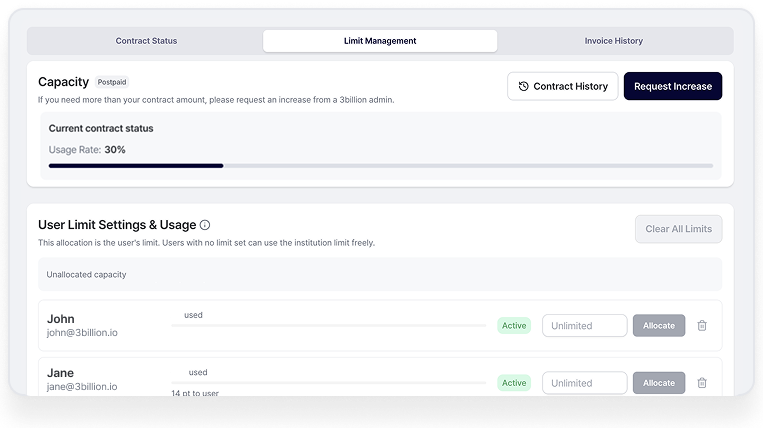
Step 1: Navigate to Limit Management
From the [Billing] page, click on the [Limit Management] tab.
Step 2: Check Overall Usage
Review your institution's total usage rate against the contract amount.
Step 3: Allocate Limits per User
Assign an individual usage limit to each user, or leave a user unlimited. Unallocated capacity is always shown separately, and any limit can be adjusted or cleared at any time.
Step 4: Request a Limit Increase (If Needed)
When usage approaches the contract amount, click [Request Increase] directly from this tab instead of emailing 3billion.
Considerations for Limit Management
- A user without a personal limit shares the institution's full remaining balance — this does not mean unlimited usage beyond the contract.
- Limit changes take effect immediately.
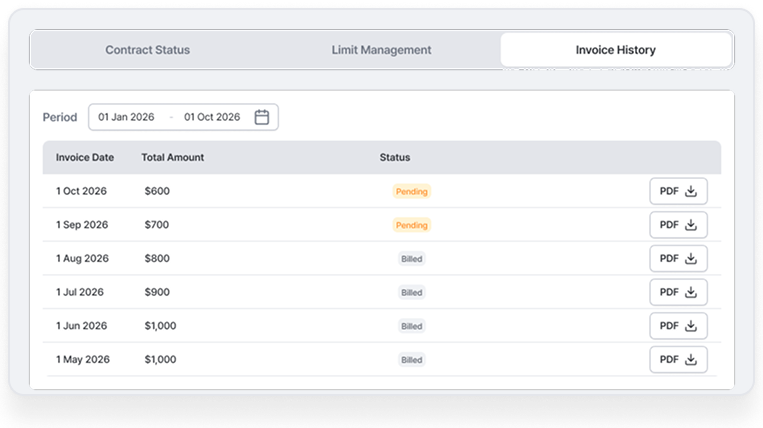
Step 1: Navigate to Invoice History
From the [Billing] page, click on the [Invoice History] tab.
Step 2: Filter by Period
Select a date range to browse past invoices.
Step 3: Download a Record
Click [Download] on any invoice to save it as a PDF.
You can check your own usage at any time from your account, without needing admin access.
Path: Go to the [My Usage] tab within your account.
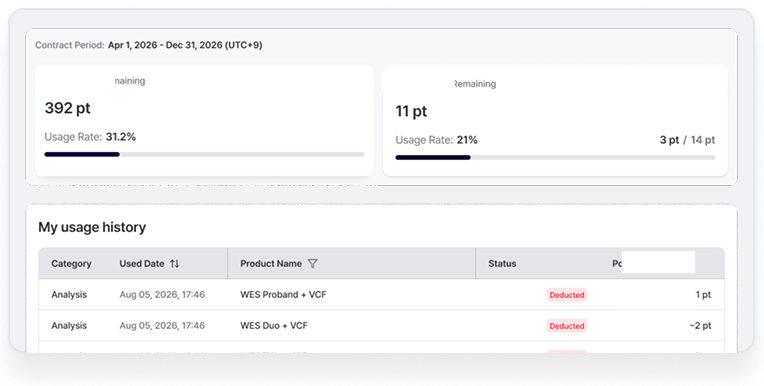
Available Features:
- My Usage: Check your institution's remaining balance and your own usage rate at a glance.
- My Usage History: Review your own usage log by product and date.
The Dashboard provides a comprehensive overview of your samples and their current progress.
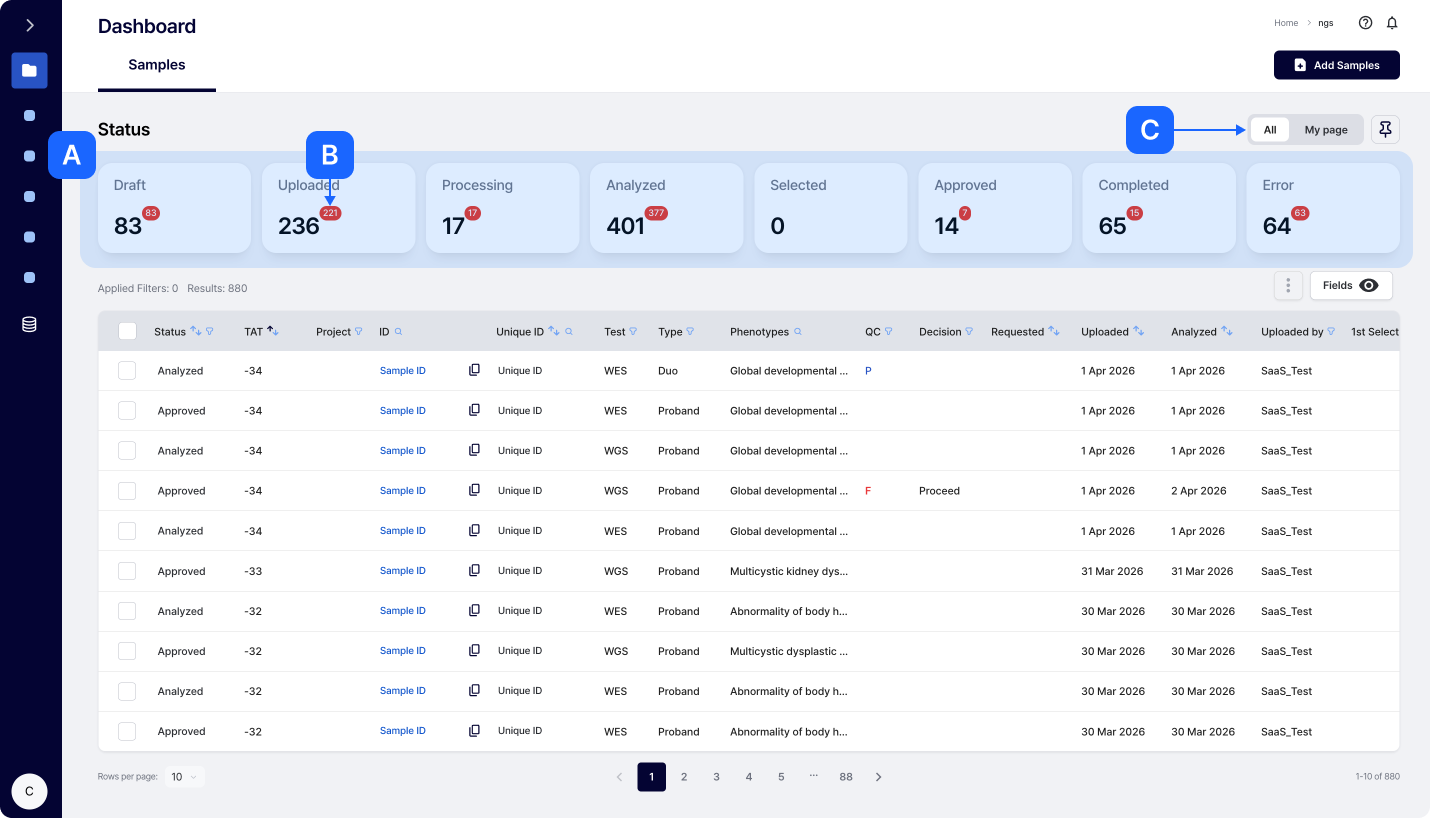

'Projects' helps you creating and managing samples depends on the projects they belong.

You can set TAT, QC threshold and list of genes you are interested differently based on projects that you are working on.

While sample upload, you can choose a project that you want to include the sample to.
Born to Run for Rare Disease Interpretation

3billion, Inc.
8F, 415 Teheran-ro, Gangnam-gu, Seoul, Republic of Korea
Tel +82 10-2724-5159 | Email gebra@3billion.io
Accreditations and Certifications
CAP License # 8750906, AU-ID# 2052626 | CLIA ID # 99D2274041 | ISO/IEC 27001:2022